6 Best Printers for Home Office Use in 2025 – Reliable and Efficient Choices
You’ll want printers that blend speed, quality, and versatility for your home office. The HP LaserJet Pro MFP 3101sdw offers fast, reliable black-and-white printing, while the HP OfficeJet Pro 8125e and 9125e deliver vibrant color with smart wireless features.
Canon’s MegaTank G3270 stands out for high-volume ink savings, and the compact HP DeskJet 2827e suits moderate use.
Brother’s DCP-L2640DW suits those prioritizing speed and monochrome printing. Here’s what makes each a top choice.
| Image | Name | Editor's Rating | Price |
|---|---|---|---|

|
HP OfficeJet Pro 8125e Wireless All-in-O...
|
|
|

|
Canon MegaTank G3270 All-in-One Wireless...
|
|
|
|
HP OfficeJet Pro 9125e Wireless All-in-O...
|
|
|

|
HP LaserJet Pro MFP 3101sdw Wireless All...
|
|
|

|
HP DeskJet 2827e Wireless All-in-One Col...
|
|
HP OfficeJet Pro 8125e Wireless All-in-One Color Inkjet Printer (405T6A)
| Preview | Product | Price | |
|---|---|---|---|

|
HP OfficeJet Pro 8125e Wireless All-in-One Color Inkjet Printer,... | Buy Now |
The HP OfficeJet Pro 8125e Wireless All-in-One Printer is designed to make your home office tasks more efficient and straightforward. It combines printing, scanning, and copying capabilities in one device, helping you tackle multiple tasks without switching machines. This printer’s automatic duplex printing saves time and paper, making double-sided printing effortless and quick.
With printing speeds of up to 20 pages per minute (ppm) in black and 10 ppm in color, it handles both everyday documents and color projects smoothly. The 2.7-inch color touchscreen simplifies navigation, allowing you to control settings and functions intuitively. Wireless dual-band Wi-Fi connectivity ensures easy printing from laptops, smartphones, and tablets without complicated setups.
Maintenance is convenient with a 225-sheet input tray and an automatic document feeder, reducing the need for constant paper refills and allowing longer uninterrupted work sessions. The printer uses HP 923 series cartridges with built-in chips, which help maintain print quality but limit third-party cartridge options. Its compact design fits comfortably in home office spaces, though it supports media sizes only up to 8.5 x 11.7 inches.
Sustainability is a key benefit, as this model incorporates over 45% recycled plastic in its construction. It also includes HP Wolf Essential Security features to protect your sensitive data during wireless printing.
Best for: Home office users needing a reliable, multifunction wireless printer with fast print speeds and seamless mobile device compatibility.
What We Like:
- Fast printing with automatic duplexing for efficient double-sided output
- Easy wireless setup supporting multiple devices
- Large 225-sheet input tray and automatic document feeder for smooth workflow
- Eco-friendly design using recycled materials
- Enhanced security features to protect data
Specification:
| Feature | Details |
|---|---|
| Manufacturer | HP |
| Model | OfficeJet Pro 8125e |
| Dimensions (W×D×H) | Approx. 17.2 x 14.5 x 10.1 in |
| Weight | Approx. 18.5 lb (8.4 kg) |
| Media Size | Up to 8.5 x 11.7 inches |
| Connectivity | Wireless dual-band Wi-Fi |
| Display | 2.7-inch color touchscreen |
| Input Tray Capacity | 225 sheets |
| Output Tray Capacity | 60 sheets |
Canon MegaTank G3270 All-in-One Wireless Inkjet Printer for Home Use
| Preview | Product | Price | |
|---|---|---|---|

|
Canon MegaTank G3270 All-in-One Wireless Inkjet Printer, Home Use,... | Buy Now |
The Canon MegaTank G3270 All-in-One Wireless Inkjet Printer is designed to simplify your home office tasks. It combines printing, scanning, and copying into one compact device, reducing clutter and enhancing efficiency. This printer ensures you can work seamlessly without frequent interruptions for ink replacements.
Its wireless connectivity means you can print and scan from anywhere in your home, adding convenience and flexibility. The included two-year ink supply lets you print thousands of pages—up to 6,000 in black-and-white and 7,700 in color—helping you avoid the hassle and cost of constant ink refills.
Maintenance is straightforward with the MegaTank’s easy-to-use 1.35” LCD display. While the screen is small, it provides essential controls for smooth operation. The printer supports single-sided printing, which is sufficient for everyday home use but might slow down larger printing tasks.
This model is ideal for individuals and families who want an affordable, efficient printer that keeps running without frequent upkeep. Its high ink capacity and wireless features make it a practical choice for typical home office needs.
Best for: Individuals and families seeking a cost-effective, easy-to-maintain all-in-one wireless printer for home use.
What We Like:
- Two-year ink supply supports high-volume printing, reducing refill frequency.
- Wireless functionality enables printing and scanning from any room.
- Compact design fits well in small spaces.
- Simple LCD display allows easy operation.
Specification:
| Feature | Details |
|---|---|
| Manufacturer | Canon |
| Dimensions | Compact size (exact size not specified) |
| Weight | Not specified |
| Color Options | Not specified |
| Display | 1.35” square LCD |
| Printing | Single-sided only |
| Ink Capacity | Up to 6,000 B&W, 7,700 color pages |
HP OfficeJet Pro 9125e Wireless All-in-One Color Inkjet Printer (403X0A)
| Preview | Product | Price | |
|---|---|---|---|
|
HP OfficeJet Pro 9125e Wireless All-in-One Color Inkjet Printer,... | Buy Now |
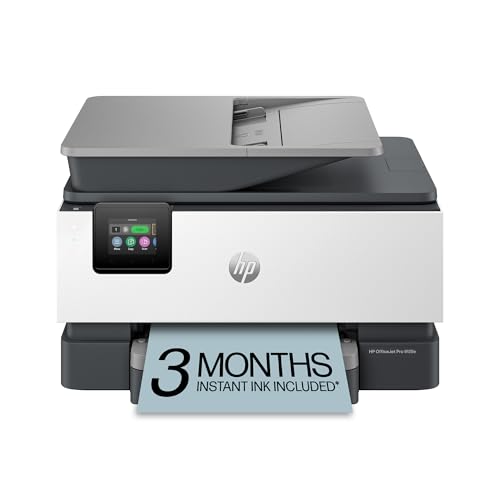
The HP OfficeJet Pro 9125e Wireless All-in-One Color Inkjet Printer is designed to streamline your home office workflow. It handles printing, scanning, copying, and faxing with ease. This printer’s fast speeds—up to 22 ppm in black and 18 ppm in color—reduce wait times, helping you stay productive.
Wireless connectivity means you can print from anywhere in your home using dual-band Wi-Fi. The HP app simplifies mobile printing, allowing you to send documents directly from your smartphone or tablet. Duplex printing and a large 250-sheet tray minimize interruptions, making multitasking more efficient.
Maintenance is straightforward with the HP Instant Ink subscription, which ensures you never run out of ink. Built-in security features protect your network and data, giving you peace of mind while working. The 2.7-inch touchscreen offers easy navigation, though it may feel limited for users needing advanced controls.
One consideration is that the printer requires HP cartridges with chips, restricting third-party ink use. Firmware updates are necessary to keep security and features current, so occasional user involvement is needed.
Best for: small to medium-sized home office users needing a reliable, wireless all-in-one printer with professional-quality color output and convenient mobile features.
What We Like:
- Fast print speeds with duplex and large tray capacity
- Convenient wireless and mobile printing via dual-band Wi-Fi and HP app
- HP Instant Ink subscription simplifies ink management
- Built-in security safeguards network and data
Specification:
| Feature | Details |
|---|---|
| Manufacturer | HP |
| Model | OfficeJet Pro 9125e |
| Printer Type | Wireless All-in-One Inkjet |
| Print Speed | Up to 22 ppm (black), 18 ppm (color) |
| Paper Tray Capacity | 250 sheets |
| Connectivity | Dual-band Wi-Fi, mobile app |
| Display | 2.7-inch touchscreen |
HP LaserJet Pro MFP 3101sdw Wireless All-in-One Laser Printer (9D2X4F)
| Preview | Product | Price | |
|---|---|---|---|

|
HP LaserJet Pro MFP 3101sdw Wireless All-in-One Laser Printer, Office... | Buy Now |
The HP LaserJet Pro MFP 3101sdw is designed to tackle the demands of busy offices needing fast, reliable black-and-white printing. It delivers professional-quality documents swiftly, printing up to 35 pages per minute. This speed helps reduce wait times and keeps workflows moving smoothly, especially during high-volume tasks.
Beyond printing, it offers convenient scanning and copying functions, with an auto two-sided printing feature that saves paper. The 250-sheet input tray and 50-sheet auto document feeder support continuous work without frequent interruptions, making it practical for small teams handling multiple tasks.
Wireless connectivity allows printing from various devices seamlessly, enhancing flexibility and ease of use in modern office setups. The printer’s robust design combines award-winning reliability with HP’s built-in security features to protect your data and device from threats.
Maintenance is straightforward, but it’s important to note the printer requires genuine HP cartridges. While this ensures print quality and device safety, it limits cartridge options and may increase operating costs. Firmware updates that block third-party cartridges could also affect users who prefer alternative supplies.
Best for: Small teams and professionals needing a dependable, efficient black-and-white laser printer with integrated scanning and copying for busy office environments.
What We Like:
- Fast print speed up to 35 pages per minute
- Integrated scanning, copying, and auto two-sided printing
- Large input tray and document feeder for uninterrupted workflow
- Wireless printing from multiple devices
- Reliable performance with strong security features
Specification:
| Feature | Detail |
|---|---|
| Manufacturer | HP |
| Model | LaserJet Pro MFP 3101sdw |
| Print Speed | Up to 35 ppm |
| Input Tray Capacity | 250 sheets |
| Auto Document Feeder | 50 sheets |
| Connectivity | Wireless |
| Print Type | Black-and-white laser |
| Dimensions (W×D×H) | Not specified |
| Weight | Not specified |
HP DeskJet 2827e Wireless All-in-One Color Printer (6W7F5A)
| Preview | Product | Price | |
|---|---|---|---|
|
HP DeskJet 2827e Wireless All-in-One Color Inkjet Printer, Scanner,... | Buy Now |
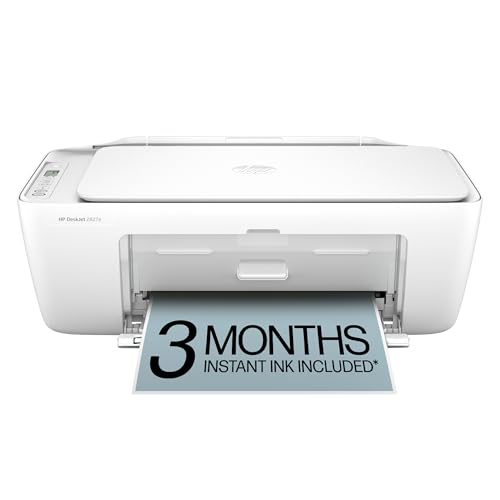
The HP DeskJet 2827e Wireless All-in-One Color Printer delivers a compact and efficient solution for everyday home office tasks. It handles printing, scanning, and copying with ease, helping you manage your documents without clutter. This printer’s wireless connectivity simplifies printing from your phone or tablet, saving time and effort.
Its 60-sheet input tray supports small print jobs without constant refills, while the color printing capability brings vibrancy to your letters and recipes. Print speeds reach up to 7.5 ppm in black and 5.5 ppm in color, suitable for moderate use. HP’s AI technology enhances print quality by removing unwanted web content for clearer documents.
Maintenance is straightforward with the included Instant Ink subscription, which automates ink replenishment and ensures you never run dry. The device is made from recycled plastics and is Energy Star certified, making it an eco-conscious choice that balances performance and sustainability.
While it lacks features like an automatic document feeder and duplex printing, its design focuses on simplicity and reliability. Cartridge options are limited to HP’s chip-enabled models, which may restrict flexibility but guarantee compatibility.
Best for: Home users and small home offices needing a compact, reliable all-in-one printer for everyday color printing, scanning, and copying tasks.
What We Like:
- Wireless printing with easy smartphone and tablet integration
- Includes 3 months of Instant Ink for hassle-free ink management
- Eco-friendly design with recycled materials and Energy Star certification
- HP AI technology enhances print clarity by removing unwanted content
Specification:
| Feature | Details |
|---|---|
| Manufacturer | HP |
| Model | DeskJet 2827e |
| Dimensions (W×D×H) | Approx. 16.6 × 12.0 × 6.0 inches (42.2 × 30.5 × 15.2 cm) |
| Weight | Approx. 5.1 lb (2.3 kg) |
| Color Options | White and gray |
| Connectivity | Wireless (Wi-Fi) |
Brother DCP-L2640DW Wireless Compact Monochrome Laser Printer with Copy and Scan
| Preview | Product | Price | |
|---|---|---|---|

|
Brother DCP-L2640DW Wireless Compact Monochrome Multi-Function Laser... | Buy Now |
Experience efficient printing, scanning, and copying with the Brother DCP-L2640DW, a compact monochrome laser printer designed to save space without sacrificing performance. This all-in-one device addresses common home and small office challenges by delivering fast print speeds of up to 36 pages per minute, ensuring your documents are ready when you need them.
The 50-page auto document feeder simplifies multi-page tasks, making scanning and copying quick and hassle-free. Its dual-band wireless, Ethernet, and USB connectivity options provide secure, flexible access for multiple users, enhancing productivity without cluttering your workspace.
Maintenance is straightforward with the Brother Mobile Connect app, allowing you to manage printing tasks and monitor supplies remotely. The Refresh EZ Print Subscription helps reduce toner costs by up to 50%, keeping your operations both economical and efficient.
While limited to monochrome printing and specific Brother toner cartridges, this printer excels in delivering reliable, high-quality black-and-white output. It’s a practical choice for environments that prioritize speed and ease of use over color capabilities.
Best for: Small businesses and home offices seeking a compact, reliable all-in-one monochrome printer with wireless connectivity and mobile management.
What We Like:
- Fast printing speed up to 36 pages per minute
- Efficient 50-page auto document feeder for multi-page jobs
- Multiple connectivity options including dual-band wireless and Ethernet
- Remote management via Brother Mobile Connect app
- Cost-saving toner subscription program
Specification:
| Feature | Details |
|---|---|
| Manufacturer | Brother |
| Dimensions | Compact size (exact dimensions not provided) |
| Weight | Not specified |
| Connectivity | Dual-band wireless, Ethernet, USB |
| Printing Technology | Monochrome laser |
| Auto Document Feeder | 50 pages |
| Mobile App Support | Brother Mobile Connect |
Factors to Consider When Choosing a Printer for Home Office
When choosing a printer for your home office, you’ll want to think about how fast you need it to print and what connectivity options suit your setup. Think about the print quality you require and how much you’re willing to spend on ink or toner.
Also, decide if you need extra features like scanning or copying built into the device.
Printing Speed Needs
Since your printing demands vary, you should match your printer’s speed to your typical workload. Start by determining how many pages you print each month to pick a printer with a suitable maximum print speed. If you mainly print black-and-white documents quickly, look for models offering up to 35 pages per minute (ppm).
For occasional color prints, slower speeds might work just fine. When dealing with high-volume printing, choose a printer with a high ppm rating and enough paper capacity to reduce refills. Also, consider printers with automatic duplex printing if you often handle multi-page documents—it saves time and paper.
Connectivity Options Available
Matching your printer’s speed to your workload is just one part of the equation; connectivity options also play a key role in how smoothly your home office operates. Wireless options like Wi-Fi, Bluetooth, and NFC let you place your printer anywhere and print from multiple devices without messy cables.
Dual-band Wi-Fi (2.4GHz and 5GHz) enhances connection stability and speed, cutting down on print errors and delays. If you prefer a wired setup, Ethernet ports offer a reliable network connection. Don’t overlook USB connections—they provide a secure, direct link when wireless isn’t dependable.
Finally, support for mobile printing apps like AirPrint or HP Smart lets you print effortlessly from smartphones and tablets, boosting your office’s flexibility and convenience.
Print Quality Requirements
Although choosing a printer with the right speed and connectivity is important, you’ll also want to focus on print quality to guarantee your documents look professional. Start by checking the printer’s maximum resolution, ideally 1200 x 1200 dpi or higher, for sharp text and detailed images. Decide if you need color printing—inkjet printers excel at vibrant photos, while laser printers offer crisp black-and-white text.
Pay attention to color accuracy and consistency, especially if you print presentations or marketing materials. Review customer feedback for insights on clarity, smudging, and color fidelity. By matching the print technology and resolution to your specific needs, you ensure every document meets your standards without compromise.
Prioritizing these factors will help you pick a printer that delivers quality you can trust every day.
Ink and Toner Costs
How much you spend on ink or toner can greatly affect your printer’s overall cost in the long run. Inkjet printers usually have lower upfront prices but tend to require frequent cartridge replacements, leading to higher per-page costs.
On the other hand, laser printers often provide a lower cost-per-page, making them ideal if you print in high volumes. Look for printers with high page yields per cartridge or toner to reduce replacement frequency and save money over time.
Additionally, consider subscription services like HP Instant Ink, which can help you manage ink expenses by automatically delivering cartridges before you run out. By factoring in these costs, you’ll choose a printer that fits your budget and printing needs efficiently.
Device Multifunction Features
Beyond ink and toner costs, you’ll want to contemplate the multifunction features your home office printer offers. Multifunction printers combine printing, scanning, copying, and sometimes faxing, saving space and boosting efficiency. Look for models with an automatic document feeder (ADF) to speed up multi-page scans and copies.
Check the maximum media size the device supports to guarantee it handles your documents, whether letter, legal, or photos. High-resolution scanning and copying—600 dpi or higher—deliver sharp, detailed reproductions. Also, prioritize printers with intuitive touchscreens or control panels; they make steering functions quicker and simpler.
Choosing the right multifunction features means your printer won’t just print—it’ll streamline all your document tasks, making your home office more productive and organized.
Security and Privacy Controls
Why should security and privacy controls matter when choosing a home office printer? Because your printer handles sensitive documents and connects to your network, it can be a weak link if not properly secured. You want a model that supports strong security features like HP Wolf Essential Security or similar protections against cyber threats.
Look for printers offering automatic, secure firmware updates to patch vulnerabilities promptly. User authentication or access control is vital to restrict printing and scanning to authorized individuals only. Confirm the printer uses encrypted wireless connections, such as WPA3 or WPA2, to protect data over Wi-Fi.
Finally, consider physical security options like lockable paper trays or secure print release to prevent unauthorized access to confidential documents. Prioritizing these controls keeps your home office data safe and your workflow secure.
Size and Space Considerations
Although you might prioritize features and security, you shouldn’t overlook the size and space your printer will occupy in your home office. Start by measuring the available area to ensure the printer fits comfortably without cluttering your workspace. Check the printer’s height, width, and depth, and consider whether you’ll have easy access to paper trays, control panels, and output areas.
If space is tight, opt for a compact or multifunctional model to maximize utility without sacrificing room. Remember to factor in extra clearance for opening covers, clearing paper jams, or replacing ink cartridges. By carefully evaluating these size and space considerations, you’ll choose a printer that fits seamlessly into your home office setup and enhances your productivity.
Frequently Asked Questions
How Do I Recycle Used Ink Cartridges Responsibly?
You can recycle used ink cartridges by returning them to manufacturers’ programs, dropping them off at office supply stores, or using local recycling centers.
Don’t throw them in the trash, as they contain harmful materials.
What Are the Best Paper Types for Photo Printing at Home?
You should use glossy or semi-gloss photo paper for vibrant colors and sharp details.
Matte paper works well if you want a glare-free finish.
Make sure the paper matches your printer’s specifications for best results.
Can I Print From My Smartphone Without a Wi-Fi Connection?
Just like sending a telegram, you can print from your smartphone without Wi-Fi by using Bluetooth or a direct USB connection. Many modern printers support these features, so you won’t always need an internet connection to print.
This makes printing convenient even when you’re offline. Simply pair your device via Bluetooth or connect it using a compatible USB cable. Your smartphone will recognize the printer, allowing you to send documents and photos directly.
How Do I Troubleshoot Common Printer Connectivity Issues?
You should restart your printer and device, check cables, make certain Bluetooth or Wi-Fi is enabled, update drivers, and reset network settings.
If problems persist, consult the printer’s manual or contact support for help.
What Maintenance Is Required to Keep My Printer Running Smoothly?
Did you know 60% of printer issues stem from poor maintenance? You should regularly clean print heads, update drivers, replace ink cartridges timely, and keep your printer dust-free to make certain it runs smoothly and avoids jams or errors.
Conclusion
Choosing the right printer for your home office is like finding the perfect tool in a busy toolbox—it makes your work flow smoothly and stress-free. Whether you need vibrant color prints, sharp laser quality, or budget-friendly ink options, one of these six printers will fit your needs.
Keep your priorities in mind, and you’ll have a reliable, efficient companion that keeps your productivity humming along without a hitch.